Deacom Cloud Local - Previous Versions
Deacom Cloud Local makes network-accessible peripherals inside a company network available to a Deacom application server running remotely. This agent was built for customers of Deacom's managed cloud services, but can be used by any customer running an off-premises Deacom application server.
Deacom Cloud Local complements Deacom Local running on each individual user's workstation. Where Local makes an individual workstation's peripherals available to the browser running Deacom, Cloud Local runs as a service on one Windows machine to make network-accessible peripherals available directly to the Deacom application server. This allows all clients, including mobile and WMS users, to access these peripherals.
Notes:
- Deacom Cloud Local is available in versions 15.03 and later.
- Beginning in version 17.03, the Deacom installation program will automatically add a new entry, "CLOUDLOCALPORT", to the .ini file during installation/upgrading. This entry is used to connect Deacom Cloud Local Service with the Web Service/Console and Automation Service. The value defaults to '1091'.
Installing DEACOM Cloud Local Service
Setup & Configuration
Cloud Local runs on a server in the customers network and requires firewall changes. It is recommended that Cloud Local is installed on an already configured print server.
Server
- Identify the server that will run Deacom Cloud Local and install and configure the desired printers.
- Obtain a copy of the Deacom Cloud Local installer. Since the Deacom application server is not accessible, Cloud customers can request a copy of the installer to be placed in their client FTP directory.
- Run Deacom.Cloud.Local.Installer.msi on the server that will host the Deacom Cloud Local service.
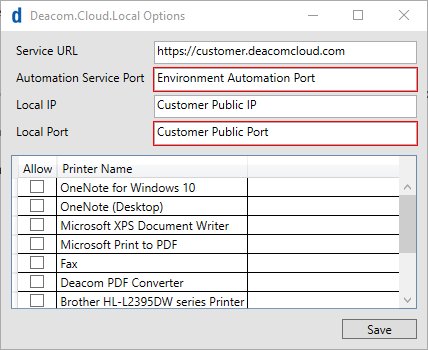
- The installer will create a shortcut to Cloud Local Options on the desktop. Double-click the shortcut to open the Cloud Local Options dialog.
- Set the Service URL and Service Port to the public hostname and port of the Deacom application server. See the example Cloud Local Options screenshot below for more information.
- Please note, it is essential to input the "https://" in the address in order for Cloud Local to properly function.
- Set the Local URL and Local Port to the public IP of the location running Cloud Local and the port that is opened in the client site firewall and forwarded to the internal machine hosting the Cloud Local service.
- In the list of printers displayed, select each printer that should be made available to the Deacom application server.
- Save and close the Cloud Local Options dialog.
Firewall
Configure the customer network firewall and Cloud Local server firewall for Cloud Local traffic. The Cloud Local service connects to the Deacom application server with instructions for establishing a connection back to the Cloud Local service running on the customer's network.
The customer will need to make the following firewall changes:
- App server firewall:
- Create an incoming access rule to allow incoming traffic from the Cloud Local public IP to the Deacom application server on the specified automation service port.
- For Deacom MCS customers, open a service ticket to allow access with the cloud hosting department. For non-MCS customers, the customer IT department is responsible for this configuration.
- Network firewall:
- Create an incoming Access Rule to allow incoming traffic from the Deacom appserver IP on any port to the customer public IP and port.
- The Deacom appserver IP is the same IP that the scanners connect to. It can also be found by pinging the web URL (Service URL) or requesting it from the Deacom team.
- The customer public IP and port are the same as the Local IP and Port from Cloud Local Options. See the Cloud Local Options screenshot for more information.
- The Deacom application server will use a random TCP port to connect to Cloud Local. To prevent communication issues please allow all ports.
- Configure a NAT to translate the customer public IP and port to the private IP and port of the server running Cloud Local.
- Create an incoming Access Rule to allow incoming traffic from the Deacom appserver IP on any port to the customer public IP and port.
- Cloud Local server firewall (if needed):
- Create a firewall rule to allow incoming traffic from the Deacom appserver IP on any port.
Additional Steps
To confirm the printer is accessible using the main application
- Navigate to any location in the system where you can print something (grid, lot label, etc.).
- When selecting a printer, verify that the printer(s) you selected are shown as available printers with the label (Cloud Local).
- Print to a Cloud Local printer. Verify that the label/form/report prints correctly and to the correct printer.
- If desired, try to print a ZPL label to a ZPL printer. Verify that the label is able to print correctly.
To confirm the printer is accessible using the scanner
- Navigate anywhere in WMS where you can print something (such as Find Inventory or finishing a job).
- When printing, verify that the printer(s) you selected are shown as available printers with the label (Local).
- Print to a Cloud Local printer. Verify that the label/form/report prints correctly and to the correct printer.
- If desired, try to print a ZPL label to a ZPL printer. Verify that the label is able to print correctly.
To setup Deacom Cloud Local for non production environments (Test, Validation, etc.), please follow these instructions.
- Navigate to Deacom Cloud Local install path (default is C:\Program Files\Deacom).
- Copy ‘Cloud Local’ directory and name it ‘Cloud Local Test’.
- Go into ‘Cloud Local Test’.
- Run Deacom.Cloud.Local.Options.exe and update the options as desired per the Setup section.
- Run the following command from an elevated Command Prompt
- Sc create Deacom.Cloud.Local.Test binPath= "C:\Program Files\Deacom\Cloud Local Test\Deacom.Cloud.Local.Service.exe" depend= nlasvc/pla start= auto displayname= “Deacom Cloud Local Service Test” obj="NT Authority\NetworkService"
- Start the new service.
- Confirm that the printer is accessible when using the main application and the scanner.
Install Barcode Fonts
Since all Cloud Local print jobs will be sent via the print server, the standard Deacom barcode fonts need to be installed on it. Make sure to install fonts for all users. This will require administrator access. If barcode output does not display, verify that fonts are installed for all users and that the fonts are not blocked (see https://learn.microsoft.com/en-us/windows/security/threat-protection/block-untrusted-fonts-in-enterprise).
Troubleshooting and monitoring active Cloud Local connections
Beginning in version 17.03, the system will add logging to the cloud local connection management in the Deacom Web Service. Every hour, each active cloud local connection's client IP, client port, and available printers will be written to the Windows Event Log under the source "Deacom Web Service"