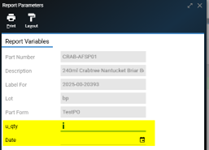
Report Parameters
Process Definition:
Report Parameters in later versions of Deacom and in some places, replace Attributes. This allows for more on the fly data entry to print out where Attributes only allowed three total. These are available for Part Forms and Reports. NOTE: “System-wide” labels can be specified in Inventory>Options and those can be overridden specifying a label at the Item Master level in the Part Forms tab.
Configuration:
- Set up via Report Properties under Print Outs>Maintenance>Part Forms or Report Layouts.
- Parameter(s) are referenced within the Part Form/Report.
- When printing the Part Form/Report, the Parameter(s) will show up within a pop-up screen. NOTE: Parameters can be made to be required for entry.
Process in Deacom:
Setting up the Parameter
- Print Outs>Maintenance>Part Forms or Report Layouts.
- Select Part Form/Report where Parameter(s) apply.
- Click on Report Properties.
- In the Variables section, click the + button.
- Blue fields are required:
- Enter a name (this is what the field will be called in the pop-up screen).
- Select the Parameter Type (e.g. Date for date entry; Character or Memo for text).
- For Initial Value, enter ‘’ (2 single tick marks).
- Click Save or Next to enter other Parameters.
- Save and Exit the Report Properties screen.
- Reference the Parameter name(s) entered in a field on the Part Form/Report.
- Ex: To add a field to manually enter a Quantity (Qty-in this case named u_qty) and a Date (named Date) to print, code such as this could be used to print the Quantity entered, assign a mask ("999,999,999") to the Quantity, and append the stock unit:
- "Qty:" + ALLT(TRANS(VAL(u_qty),"999,999,999"))+ ' ' + stockunit.
- Then add another field for the manually entered Date to print referencing just the name (i.e. Date).
- Ex: To add a field to manually enter a Quantity (Qty-in this case named u_qty) and a Date (named Date) to print, code such as this could be used to print the Quantity entered, assign a mask ("999,999,999") to the Quantity, and append the stock unit:
Using the Parameter(s)
1. When printing labels, the following appears with the Parameters at the bottom: